Topic Introduction
A digital warranty folder is a set of organized files that captures the documents you need for warranty claims: proof of purchase, warranty terms, serial numbers, and service history. For many products, the warranty clock depends on purchase date, so the folder should preserve that date with minimal ambiguity.
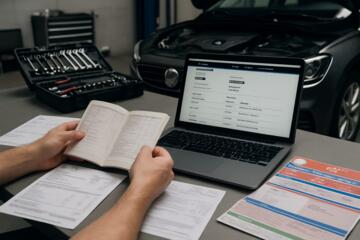
For example, a car owner can store the purchase contract, the vehicle identification number (VIN) page, and the warranty booklet or manufacturer warranty terms in one place. When a dealer asks for documentation, you can upload the same files instead of searching through email threads and photo albums.
For home appliances, the same pattern works: a receipt PDF, a photo of the model and serial label, and the warranty card or terms page. If you buy online, the order confirmation email often contains the order number and date, which can be more reliable than a screenshot taken later.
To keep the folder usable, you need a structure that survives time, device changes, and account logins. That structure usually includes consistent naming, a predictable folder layout, and backups that do not depend on a single phone.
Main Problems Or Pain Points
People often create a “warranty folder” that turns into a pile of unrelated PDFs and photos. The failure mode is usually not storage capacity; it is missing context. A file named “Warranty” tells you nothing about which product it belongs to, and it forces manual re-checking of serial numbers.
Another common issue is inconsistent capture. Some items get a receipt PDF, while others get a blurry photo of a label. When a claim requires exact model and serial information, the folder becomes a scavenger hunt, and the claimant loses time.
Supporting technologies matter because the folder depends on them. File naming and metadata depend on the operating system and the app that created the PDF. Search depends on whether the text is selectable (OCR) or only an image. Cloud sync depends on account access and retention policies, which can change without notice.
Even the “scan” step can introduce problems. Many phone scanners default to low resolution or compress images aggressively, which can make serial numbers unreadable. I have seen cases where a warranty claim stalled because the serial number was present but not legible at the required zoom level.
Finally, people underestimate the role of versioning. Warranty terms can differ by model year, trim, region, or production batch, and a folder that stores only one generic PDF can conflict with what the service agent expects.
Solutions And Advice
Design A Stable Folder Layout
Start with a layout that matches how you search under stress. A practical pattern is: one top-level folder per owner or household, then one folder per product category, then one folder per item. For vehicles, use a folder named with the year, make, model, and VIN suffix (for example, “2022_Toyota_Camry_VIN1234”). For electronics and appliances, use model and serial together when possible.
Keep the same structure across devices. If you switch from iPhone to Android, or from one laptop to another, the folder layout should still make sense. I prefer a layout that does not rely on app-specific features like “shared albums,” because those can be reorganized by the platform.
Within each item folder, create subfolders such as “Proof of Purchase,” “Warranty Terms,” “Serial Numbers,” and “Service Records.” If you buy accessories later, add an “Add-ons” subfolder so the main warranty documents remain separate from later purchases.
Use Consistent File Naming
Adopt a naming convention that sorts naturally and stays readable. A common approach is: YYYY-MM-DD_Product_Descriptor_DocumentType_Version. Example: “2023-04-18_VIN1234_Receipt_PurchaseOrder.pdf” or “2023-04-18_VIN1234_WarrantyTerms_RegionUS_v1.pdf.” If the warranty terms PDF has a revision date, include it in the name.
When you scan paper documents, name the file at the moment you create it. Many scanners auto-name files like “IMG_1023,” which forces you to open each file later. A small aside: on my test workflow with a phone scanner app version 3.2.x, the default OCR sometimes missed hyphens in serial numbers, so I rechecked the output for legibility before saving.
Keep duplicates. If you have both an email receipt and a PDF receipt, store both, but label them clearly. Claims often accept either, yet service agents sometimes prefer the document that includes the order number.
Capture The Right Evidence
Warranty claims usually hinge on three things: purchase date, product identity, and the warranty terms that apply. For each item, store at least one document that proves purchase date (receipt, invoice, or order confirmation), one that identifies the item (serial number label photo or a page showing model/serial), and the warranty terms (booklet page or manufacturer terms PDF).
For vehicles, include the VIN, the purchase date, and the warranty coverage page or booklet. For appliances, include the model and serial label photo plus the warranty card or terms page. For electronics, include the serial number and the retailer invoice.
If you download warranty terms from a manufacturer website, save the page as a PDF with the date captured. Web pages can change, and a saved PDF with a timestamp reduces ambiguity.
Back Up And Keep Search Working
Backups should not depend on one device. A practical setup uses a local copy plus a cloud copy. For example, keep the folder on a computer drive and also sync it to a reputable cloud storage account. Use a second method for redundancy, such as an external drive updated monthly.
Search quality depends on OCR. If your scanned PDFs are image-only, search may fail. Run OCR during scanning if the tool supports it, then verify by searching for a serial number or model number that appears in the document.
Set a review cadence. A quarterly check takes less time than a claim scramble. In that check, confirm that new files are in the right folder, that filenames follow the convention, and that the cloud sync shows recent changes.
Be cautious with sharing. If you store sensitive information like full VINs, serial numbers, or account numbers, restrict access to the folder. Use separate accounts for household members when possible, and avoid public links.
Case Examples
Vehicle Warranty Folder After A Repair
An anonymized owner buys a used car in March 2023 and later replaces a component under warranty in September 2023. The owner had stored the purchase contract PDF, a photo of the VIN plate, and the warranty terms PDF in a folder named “2020_Model_VIN1234.” When the service advisor requested documentation, the owner uploaded the same files from the folder and added the repair invoice to “Service Records.” The folder stayed organized because the owner used consistent naming and kept a separate subfolder for service invoices.
In this scenario, the key win was not speed alone; it was reducing back-and-forth. The service agent could match the VIN and purchase date without asking for screenshots from email.
Appliance Claim With Mixed Document Sources
An anonymized household buys a refrigerator online and receives both an order confirmation email and a separate PDF invoice. The warranty card arrives later as a paper insert. The household scans the warranty card with OCR enabled, saves it as “YYYY-MM-DD_Refrigerator_ModelSerial_WarrantyTerms_v1.pdf,” and stores the email confirmation as “..._ProofOfPurchase_OrderEmail.pdf.” When a compressor issue appears, the claim package includes purchase date and model/serial evidence from the same item folder.
The practical lesson is that mixed sources can work if the folder layout and naming remain consistent. Without that structure, the household would likely search across email and photos, and the model/serial photo might be missing or hard to read.
Comparison Table Or Checklist
Use the checklist below to decide how to structure your folder and how to keep it usable over time.
| Option | Best For | Trade-Off | What To Verify |
|---|---|---|---|
| Local folder + cloud sync | Most households that want redundancy | Sync settings can change; large files may take time | Recent sync status, readable serial numbers, OCR search |
| Cloud-only folder | People who rarely use a computer | Account access issues can block claims | Offline access, folder permissions, export/download test |
| External drive + manual updates | Privacy-focused setups | Manual updates risk falling behind | Monthly update habit, file integrity checks |
Step-by-step checklist for each new item:
- Create the item folder using year/make/model/VIN or model/serial.
- Add proof of purchase (receipt PDF, invoice, or order confirmation).
- Add warranty terms (booklet page or saved PDF with a date).
- Add identity evidence (photo of label or a page showing model and serial).
- Run OCR or verify search by searching for the serial number.
- Rename files immediately to match the naming convention.
- Back up by confirming cloud sync or copying to an external drive.
Common Mistakes
One mistake is storing warranty terms without the purchase date. Warranty coverage often depends on the purchase date, and a folder missing that proof forces extra steps during a claim.
Another mistake is mixing multiple items into one folder. A single “Receipts” folder might look tidy at first, then becomes unsearchable when you need a specific model number. Splitting by item reduces the number of files you must scan.
People also save screenshots instead of documents. Screenshots can lose text quality and can omit the order number or date. A PDF invoice or a saved email attachment usually preserves the fields that claims teams check.
Some folders include sensitive identifiers without access control. If you share the folder link with family members or store it in a shared drive, you may expose full serial numbers and account details. Restrict access and consider redacting nonessential fields when a claim does not require them.
Finally, many people forget to update the folder after service. A warranty claim often generates a repair invoice, a claim reference number, and sometimes a parts replacement record. If those documents stay outside the item folder, the next claim becomes harder.
FAQ
What documents belong in a warranty folder?
Store proof of purchase (receipt/invoice/order confirmation), warranty terms (booklet page or saved PDF), and product identity (VIN/model/serial evidence). Add service invoices and claim reference numbers after any repair.
How should I name files so I can find them later?
Use a consistent pattern that starts with the date, then the product identifier, then the document type, and optionally a version tag. Example: “2024-01-10_VIN1234_Receipt_Purchase.pdf.”
Do I need OCR for scanned warranty documents?
OCR helps search work. Verify by searching for a serial number or model number inside the PDF; if search returns nothing, the scan is likely image-only.
Where should I store the folder for backup?
Use at least two copies: a local copy and a cloud sync or an external drive. Confirm that you can open the files after a device change and that the cloud sync shows recent updates.
How long should I keep warranty records?
Keep them for the warranty period plus a buffer for follow-up claims. If you sell the item, having records can also support transfer questions that some warranties require.
Author's Insight
A well-organized digital warranty folder behaves like a small records system: it reduces ambiguity, preserves dates, and keeps identity evidence attached to the right item. The main technical levers are file naming, OCR quality, and backup redundancy, not the storage size.
Because warranty terms and claim requirements vary by manufacturer and region, the folder should store the exact terms you received or downloaded, not a generic summary. When documents are missing, claims teams often ask for the same three categories: purchase date, product identity, and applicable warranty coverage.
For privacy, treat serial numbers and VINs as sensitive identifiers. Restrict access to the folder and avoid public links when you share documents for a claim.
Key Takeaways
Use a stable folder layout with one folder per item, and store proof of purchase, warranty terms, and identity evidence together.
Rename files immediately using a date-first convention, and verify OCR by searching for a serial number.
Back up with at least two copies and confirm sync or export works after a device change.
Add service invoices and claim references to the same item folder so future claims do not restart from scratch.