3-2-1 Backup For Documents
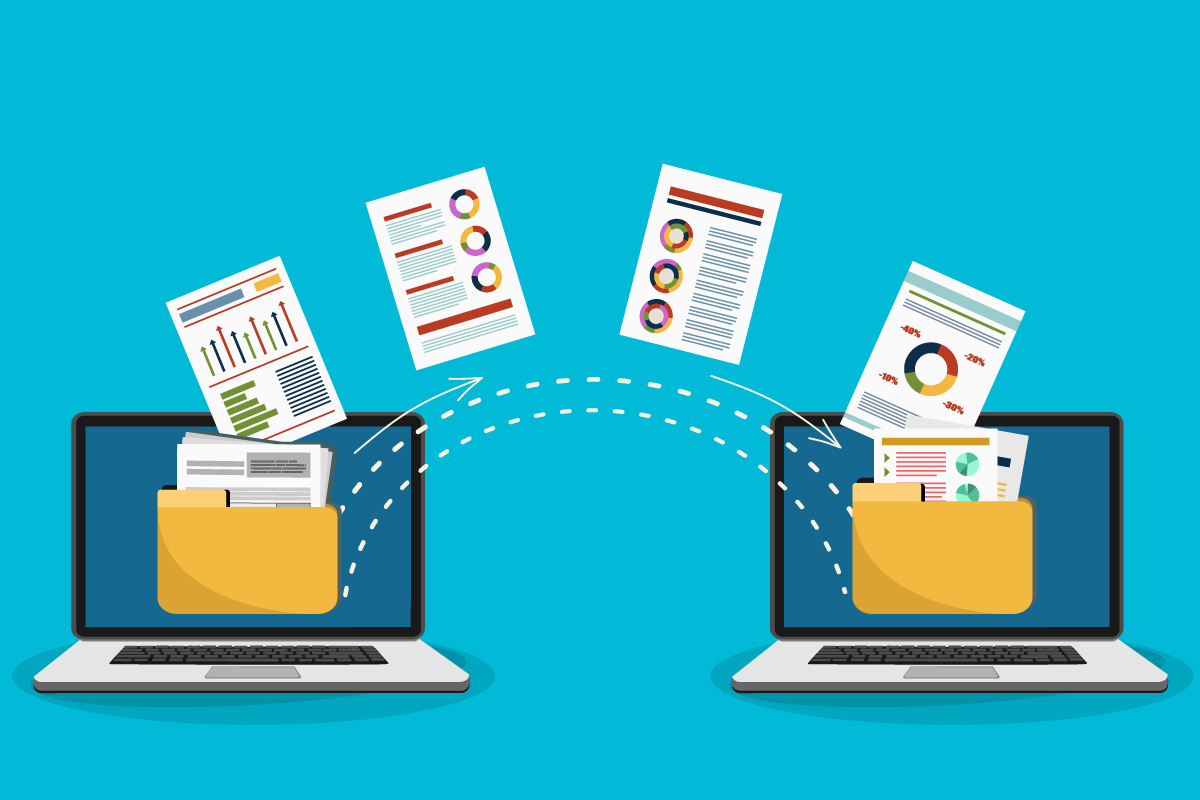
A 3-2-1 backup means you keep three copies of your files, on two different types of storage, with one copy stored offsite. For documents, that typically looks like: one copy on your computer, one copy on an external drive, and one copy in a separate location such as cloud storage or another physical site. This structure matters because most real losses come from a small set of causes: accidental deletion, ransomware encryption, drive failure, and theft or fire that removes multiple items at once.
Start by listing what you actually need to recover quickly. Many people focus on medical records and insurance letters, then forget the supporting items that make those records usable later, like PDF cover pages, claim reference numbers, and the “read me” notes that explain which scan belongs to which provider. If you scan documents, keep the original PDF plus any OCR text layer; OCR can help search, but it also creates another artifact that you want backed up.
For a practical example, imagine you scan a folder called “2024_Insurance” and store it as PDFs. Your 3-2-1 plan might include: the folder on your laptop, a mirrored folder on an external SSD, and an encrypted copy in a cloud account you sign into from a different device. When you later need a document, you restore the exact PDF, not a screenshot you can’t search.
Main Backup Pain Points
People often build backups that look correct but fail under stress. The most common mistake is assuming that “sync” equals “backup.” Sync services mirror changes both ways; if you delete a file on your computer, the sync target may delete it too, which defeats the point of recovery after mistakes. Another frequent failure is having multiple copies that share the same risk, such as two drives plugged into the same computer that gets hit by ransomware.
Ransomware adds a specific dependency: the backup must be writable only in a way that resists encryption. If your external drive stays connected all the time, malware can reach it. If your cloud account uses the same login credentials as your daily device, a compromised account can lead to mass deletion or encryption. Even without malware, cloud backups can fail when storage quotas fill, when version history expires, or when you stop paying attention to alerts.
Drive failure is another predictable issue. Hard drives can fail after years of use, and SSDs can degrade too, especially under heavy write patterns. Backups that rely on one drive type without testing restore speed often create a second problem: you can recover files, but only after hours of waiting, which pushes people to postpone restoration until it becomes urgent.
There’s also a “format drift” problem. If you store documents in a mix of proprietary formats, old software might not open them later. PDFs usually age better, but even PDFs can be created with settings that affect readability. A backup plan should include a simple verification step that opens a few restored files and checks that text is readable and pages aren’t blank.
Solutions And Advice
Choose Storage With Separation
Use two different storage types for the “2” part of 3-2-1. A common pairing is an external drive (HDD or SSD) plus cloud storage. The “1” offsite copy should not depend on the same physical location as your computer. If you keep an external drive, disconnect it after backups; leaving it plugged in is convenient, and it also makes ransomware reach it more easily.
For the external drive, aim for a size that fits your growth for at least a year. If your documents folder is 50 GB today and you add 10 GB per month, a 500 GB drive gives room for expansion. I’ve seen people buy a 128 GB drive for a growing archive, then hit the limit and stop backing up because the software reports “disk full” and the alert gets ignored.
Use Encryption And Versioning
Encrypt backups so a lost drive or exposed cloud account doesn’t turn into a privacy incident. Many backup tools offer encryption at rest; some also support client-side encryption where the provider never sees the plaintext. For cloud backups, check whether version history exists and how long it lasts. Versioning matters because accidental deletion and ransomware often start with mass file changes.
When you set up encryption, store the recovery key in a separate place. A password manager can hold the key, but the manager itself must be backed up and accessible. If you use a tool like VeraCrypt for encrypted containers, remember that you still need a backup of the container file and the password recovery method; otherwise you can end up with an encrypted archive you can’t open.
For a small but telling detail: if your backup software shows a version number, record it in your notes. I once watched a backup schedule change after an update, and the only clue was a version label in the app’s settings panel.
Schedule Backups And Test Restores
Backups should run on a schedule that matches how quickly your documents change. For many households, a weekly full backup plus daily incremental updates is a practical pattern, but the exact schedule depends on how often you add new scans. If you generate documents monthly, a monthly backup can work if you also do a manual “after scan” backup for new files.
Testing restores is where plans succeed or fail. Pick a small folder, restore it to a different location, and open a few PDFs to confirm they display correctly. Do this at least once every quarter. If you restore to the same computer that you’re testing, you can accidentally overwrite the restored files; restoring to a separate test folder avoids that confusion.
Track outcomes. A simple log that says “restore test passed on 2026-03-12” beats a vague memory. Tools like Windows File History, macOS Time Machine, and third-party backup apps can all restore, but the restore path and speed vary, and you want to know before you’re under time pressure.
Organize Files For Fast Recovery
Backups fail when you can’t find what you need. Use a folder structure that matches how you search later: by year, by provider, or by document type. For example: “Health/2026/Imaging,” “Health/2026/Claims,” and “Insurance/2026.” Keep filenames consistent, such as “ProviderName_YYYY-MM-DD_DocumentType.pdf.”
When you scan, store the original PDF and any OCR output in the same folder. If you use OCR, verify that the text layer exists by searching within the PDF. OCR can be wrong, and it can also be missing if the scanner settings change; a quick search test catches that before you rely on it.
For cloud copies, avoid mixing personal and sensitive documents in one folder if you plan to share access. Even if you encrypt, separating folders reduces the chance of accidental sharing through a mis-click or a wrong link.
Case Examples
Household Medical Archive
A household scans prescriptions, lab results, and insurance letters into a “Health” folder. They keep the folder on a laptop, run an automatic weekly backup to an external SSD, and upload an encrypted copy to a cloud account with version history. After a month, they notice the cloud storage quota warning and fix it by increasing the plan or pruning older nonessential scans. When a claim is denied, they restore the “Claims/2025” folder from the cloud version history and locate the exact PDF using the filename date.
The lesson isn’t that cloud backups are perfect; it’s that version history plus a restore test prevents a common failure mode. If they had relied only on sync, a deletion on the laptop could have removed the cloud copy too.
Small Office Document Recovery
A small office stores client documents and invoices on a desktop computer. They back up to an external drive that stays disconnected except during scheduled backups, and they maintain an offsite copy in cloud storage using a separate account. When a drive fails, they restore from the offsite copy to a replacement computer and verify that PDFs open and that the folder structure matches the original. The team also keeps a short “restore notes” file listing which folders map to which clients, because filenames alone can become inconsistent over time.
They avoid leaving the external drive connected, which reduces exposure if the desktop gets infected. They also avoid relying on a single storage type, since a single cloud outage or quota issue can delay recovery.
Checklist And Tradeoffs
| Decision Point | What To Do | What It Prevents | Tradeoff |
|---|---|---|---|
| 3 Copies | Keep one on your device, one on an external drive, one offsite. | Single-device loss and many ransomware scenarios. | More storage management. |
| 2 Storage Types | Use external drive plus cloud, or drive plus another physical site. | Failure modes tied to one medium. | Different restore steps. |
| Versioning | Turn on file history or version retention where available. | Accidental deletion and mass overwrite. | Higher storage usage. |
| Restore Tests | Restore a small folder quarterly and open PDFs. | Silent backup failures and unreadable files. | Time cost every quarter. |
Step-by-step checklist you can follow:
- Pick a folder scope (for example, “Health,” “Insurance,” “Taxes,” or “Work Contracts”).
- Choose two storage types and confirm you can restore files from each.
- Turn on encryption for at least the offsite copy, and store the recovery key separately.
- Set a schedule that matches how often you add documents.
- Run one full backup, then verify by opening 3–5 restored PDFs.
- Record the backup tool name and version number in a notes file (for example, “Backup app v3.2.1”).
- Do a restore test every quarter and after major changes like switching scanners or moving computers.
Common Mistakes
One mistake is using a single “backup” that is actually a mirror. If you rely on sync and you delete a folder, the backup copy can disappear too. Another mistake is treating the external drive as permanent storage without disconnecting it. Malware and some backup failures can propagate changes to connected drives.
People also skip encryption because it feels like extra work. That choice can create a privacy risk if a drive is lost or a cloud account is accessed by someone else. Encryption adds friction in recovery, so you need a recovery key plan that you can execute when you’re stressed.
Another practical error is not checking backup alerts. Backup tools often report failures in a small banner or email, and the message gets buried. If you see a “last backup failed” notice, fix it before you trust the system again.
Finally, many plans ignore the “readability” test. A backup can restore files that open as blank pages, missing fonts, or corrupted PDFs. Opening a few restored documents catches these issues early, and it also confirms that OCR text layers still exist when you search.
FAQ
What Counts As A Backup Copy?
A backup copy is a retrievable version of your files stored separately from your main working device. In a 3-2-1 setup, that typically means your computer, an external drive, and an offsite location like cloud storage or another physical site.
Is Cloud Sync The Same As Backup?
Cloud sync often mirrors deletions and overwrites, which can remove the very files you need after an accident. Backup systems usually include version history or snapshots so you can restore an earlier state.
How Often Should I Test Restores?
Test restores at least once per quarter by restoring a small folder and opening a few PDFs. Test sooner after you change backup software, switch devices, or change scanning settings.
Should I Encrypt Offsite Backups?
Encrypting offsite backups reduces privacy risk if a drive is lost or an account is compromised. If you encrypt, store the recovery key in a separate place and verify you can access it.
What File Types Work Best For Documents?
PDF is usually a reliable choice for scanned documents because it preserves page layout and can include OCR text. If you store other formats, confirm you can open them on a different computer later.
Author's Insight
A 3-2-1 backup works because it separates common failure causes: accidental deletion, device failure, and location-based loss. The system’s reliability depends less on the brand of backup tool and more on three behaviors: separation of storage risks, retention of older versions, and periodic restore testing. Encryption improves privacy, but it adds a recovery-key dependency that must be planned. If you treat backups as something you verify, not something you set once, your recovery experience becomes predictable.
Key Takeaways
- Use 3 copies, 2 storage types, and 1 offsite copy for document recovery.
- Avoid confusing sync with backup; version history matters for deletion and ransomware scenarios.
- Encrypt offsite backups and store recovery keys separately.
- Run restore tests quarterly by opening restored PDFs and checking folder structure.