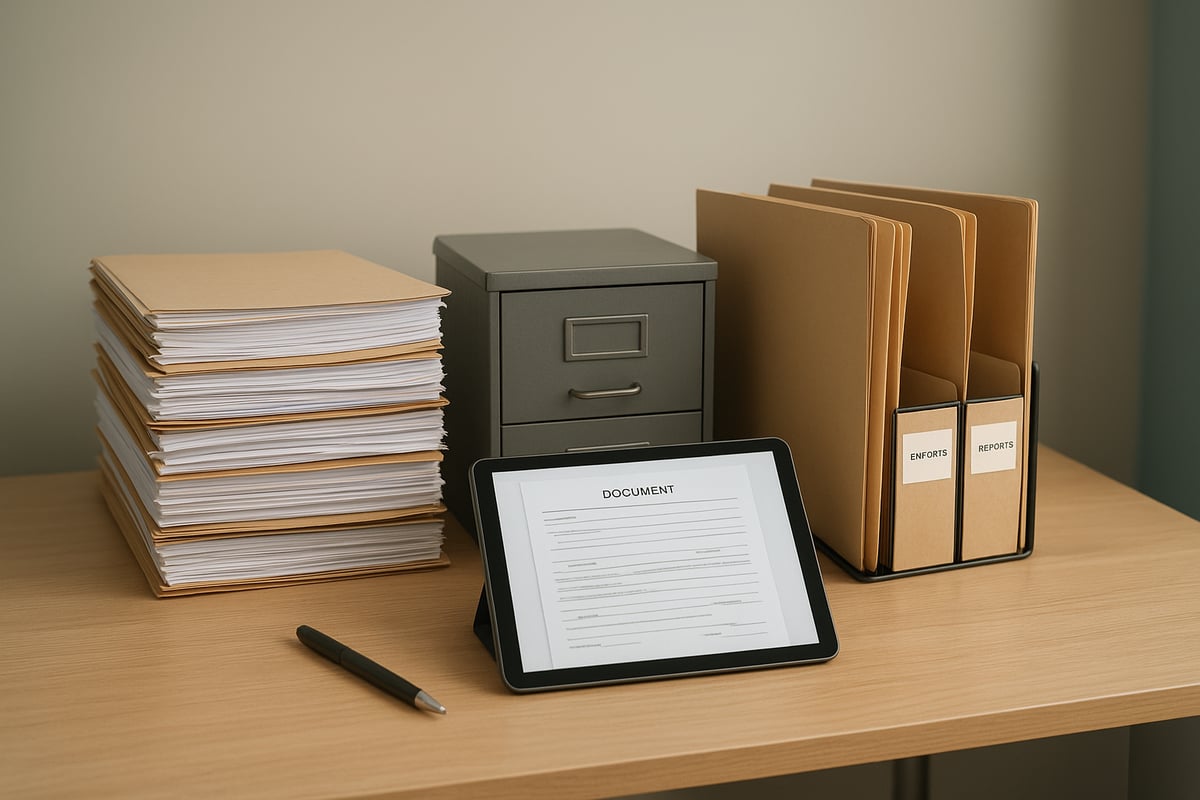
Document System Basics
Organizing important documents means you can find the right record fast, prove what you need, and protect sensitive information from loss or unauthorized access. A practical system separates “need now” items from “need later” items, then ties both groups to a consistent naming and storage method. For example, you might keep current health insurance cards and recent prescriptions in a small binder, while storing older tax returns in a labeled box.
In the U.S., the IRS generally requires keeping federal tax records for 3 to 7 years depending on the situation, and the Social Security Administration advises keeping records of earnings and benefits for life. Those time ranges matter because your filing system should match how long you may need each document. The IRS publication on recordkeeping is updated periodically, so confirm the latest guidance for your tax year.
Main Filing Pain Points
People often organize documents by where they were received, not by what they prove. That approach breaks during disputes because you may need a specific proof, like coverage dates, a prescription history, or a loan payoff statement, and the proof may be scattered across mail, email, and device downloads.
Another common mistake is mixing sensitive and non-sensitive records in the same folder without access control. Health records and identity documents can expose you to fraud if someone finds them, and the risk rises when you store everything in a shared cloud folder or an unlocked device. In practice, a shared family computer or a “public” folder in cloud storage can turn a filing system into an access problem.
Skip the random folders. They multiply.
People also underestimate how long “temporary” documents stay in circulation. A temporary insurance letter, a benefits portal printout, or a medical prior authorization can become the only evidence you have later, and it may arrive as a PDF in email, a screenshot on a phone, or a paper letter. Those formats depend on supporting technologies: email search, PDF viewers, scanner software, and the storage permissions of your cloud account.
Document Organization Plan
Map Categories Before Filing
Create categories that match real proof needs: identity, health, taxes, banking, housing, legal, and insurance. Then define date ranges for each category, such as “current year” and “previous 7 years,” so you do not keep every document forever. This works because you reduce decisions at the moment you receive a document.
In practice, you can start with 10–15 categories and expand later. A simple folder tree might look like: Health/Insurance, Health/Prescriptions, Taxes/2024, Banking/Mortgage, and Legal/Contracts. I like to keep a “To File” folder for 7 days, which prevents the system from becoming a permanent junk drawer.
Use one index file.
Set a Retention Timeline
Assign each category a retention window based on typical legal and administrative needs. For taxes, the IRS recordkeeping guidance often points to 3 years for routine returns and longer for certain cases; for other documents, you may follow contract terms or agency guidance. Because rules vary by country and situation, confirm the latest official guidance for your jurisdiction.
For health records, retention depends on your provider’s policies and your own needs for continuity of care. If you keep copies, focus on items that affect treatment decisions: immunization records, lab results you rely on, imaging reports, and medication lists. Keep a medication history summary even if you do not store every refill receipt.
Short retention beats clutter.
Choose Paper vs Scan Rules
Decide which documents stay paper and which become digital. Many people keep originals for documents that require wet signatures or that you may need to present physically, while scanning everything else for search and backup. This works because you separate “presentation” from “retrieval.”
In practice, scan documents at 300 dpi for text-heavy pages and use color when the document includes stamps or colored forms. Save scans as PDF with OCR when possible, and test search by typing a word you know appears on the page. A mild frustration: some scanners generate OCR that misses small text, so you should spot-check 2–3 files after you set up your workflow.
Test search on 3 files.
Control Access for Sensitive Records
Protect identity and health records with access controls. Use strong account passwords, enable multi-factor authentication, and restrict sharing links so they expire or require sign-in. For paper, store sensitive documents in a lockable container and keep keys separate from the container.
In practice, create separate folders for “family access” and “restricted access.” For example, you can share insurance summaries with a spouse while keeping scanned IDs and full medical records restricted. This reduces the chance that a casual device login exposes everything.
Limit who can open.
Set a Weekly Filing Routine
Schedule a short session, such as 15 minutes every week, to file new documents into the correct category. This works because you prevent backlog, and you catch documents while they still arrive in predictable channels like email, mail, or provider portals.
Use a “triage” step: open the document, confirm the date range, then file it with the correct naming rule. If a document needs action, move it to a separate “Action” folder with a due date. A small aside: I have seen people file everything immediately and then forget which items required follow-up, which creates a different kind of backlog.
File, then tag actions.
Keep an Emergency Grab Folder
Create a small set of documents you can access quickly during emergencies. Include items like a photo ID copy, insurance cards, a medication list, and key contact information for providers and insurers. This works because emergencies often disrupt internet access, and paper can be faster than logging into portals.
In practice, store the grab folder in a consistent location and update it every 6 months. Keep a one-page “medical summary” with allergies, current medications, and major diagnoses, because it reduces repeated questions when you reach a clinic. If you use a digital version, print a copy too, since some situations involve power loss or device damage.
Update every 6 months.
Educational Case Examples
Case: New Job, Scattered Proof
An anonymized household receives health insurance enrollment documents by email, a paper welcome packet, and a benefits portal PDF. They previously stored each item in the folder where it arrived, which caused delays when they needed proof of coverage start date for a clinic appointment. They switch to a Health/Insurance folder with filenames that include the coverage period, then update the master index. After 2 months, they can find the coverage start letter in under 1 minute because the index points to the exact PDF.
They also scan the paper packet with OCR and test search for “coverage” and the member ID. The improvement comes from retrieval, not from scanning alone.
Case: Moving Homes, Lost Paper Trail
An anonymized renter moves and keeps a folder of lease documents in a desk drawer, while banking statements remain in email downloads. When a landlord requests a copy of the move-in inspection form, the renter cannot locate it quickly. They create a Housing/Lease category and scan the inspection form into a dated PDF, then store the original in the same category box. The next time they need a document, they use the same naming rule and the master index to locate it without searching email.
They still keep paper originals for the lease and inspection forms, because the landlord prefers physical copies in some situations.
Checklist And Comparison
Use the table below to choose a filing approach based on your risk tolerance and time budget.
| Approach | Best For | Main Risk | What To Do First |
|---|---|---|---|
| Paper Binder + Box | People who need quick physical access | Fire, water, theft | Create 6 categories and label them |
| Digital Folder + OCR | People who search by keywords | Account lockout, deletion, OCR errors | Scan 10 documents and test search |
| Hybrid With Backup | Most households with mixed needs | Time spent keeping two systems aligned | Set a weekly 15-minute filing routine |
Skip the “perfect system.” Start with one category and one backup copy.
Here is a step-by-step checklist you can follow in one weekend:
- Pick 10 document types and create folders for them.
- Choose a naming rule and apply it to 10 scanned files.
- Build a master index with document type, date range, and storage location.
- Set up a second copy for digital files and test restoring one file.
- Create a grab folder with ID copy, insurance cards, and a medication list.
Then keep the routine short.
Common Mistakes
People often scan everything at once without checking OCR quality. When OCR fails, you end up with a digital archive that behaves like a stack of images, and you lose the speed benefit that motivated scanning.
Another mistake is deleting originals too early. If you rely on a scan for a claim or a clinic request, you may need the original document later, and some institutions reject low-quality copies. Keep originals for documents that require physical verification until you confirm acceptance.
Skip the “scan and forget” habit.
People also ignore versioning. If you save a PDF over an older one, you may overwrite the only copy of a prior medication list or a previous insurance authorization. Use versioned filenames or keep separate files for each date range.
Some households store documents in a single shared folder with broad sharing permissions. That can expose identity and health records to anyone with the link, and it increases the chance of accidental exposure during account sharing or device handoffs.
Use restricted sharing, not links.
Finally, people forget to update the system after life events. A new insurer, a new pharmacy, or a new address changes where documents arrive and which ones matter, so the index and grab folder need periodic review. A mild frustration: many people update the folder structure but forget to update the master index, which defeats the whole purpose.
Update the index too.
FAQ
How long should I keep tax records?
Recordkeeping periods vary by situation. In the U.S., the IRS generally recommends keeping federal tax records for 3 years for routine filings and longer for certain cases; confirm the latest IRS guidance for your filing type and year.
Should I scan insurance cards?
Scan them if you need quick access for appointments, but keep the physical cards too. Use a clear PDF with OCR, and store it in a Health/Insurance folder with filenames that include the coverage period.
What resolution works for document scans?
For text documents, 300 dpi is a common target for legibility. If you scan forms with small text, test readability on a few pages and adjust settings if the text looks soft.
How do I back up without losing versions?
Use a backup method that keeps file history or snapshots, or keep dated versions in separate files. After setup, restore one file to confirm you can recover it, because backups sometimes fail silently.
Where should I store a medical summary?
Store a one-page medical summary in your grab folder and in your digital Health/Medical folder. Update it every 6 months or after major medication or diagnosis changes, and include allergies, current medications, and key conditions.
Author's Insight
A document system succeeds when it reduces retrieval time and prevents accidental exposure, not when it looks neat. The most reliable approach pairs a simple category structure with consistent naming, then adds a backup test and restricted access. I do not have personal clinical experience, so I focus on practical evidence-based habits: OCR quality checks, retention alignment with official guidance, and recovery testing after setup. If you want one measurable target, aim to locate a specific document within 60–120 seconds using the master index.
Key Takeaways
Start with a small set of categories, then add retention rules and a master index so you can find records quickly. Use a hybrid approach if you handle both physical and digital workflows, and keep a grab folder for emergencies. Digital backups need a second copy and a restore test, because storage failures and accidental deletions happen.