Keep Your Data Safe
Mapping every account to its recovery email means you can answer, for each login, “Which email address receives the reset and recovery messages?” This matters because most account recovery flows send a one-time code or a reset link to the recovery email, and those messages expire quickly. For example, many email-based password reset links are time-limited; common practice is 15–60 minutes, though the exact window varies by service.
Start with a measurable target: list every account you can remember and verify the recovery email for each one. If you track 30–80 accounts across email, shopping, banking, and social apps, you can usually reduce recovery failures by fixing the small subset that still points to old addresses. A practical benchmark: if you have 10 accounts tied to an old email, updating those 10 often eliminates most “I never got the code” incidents.
Two evidence-based facts guide the workflow. First, the U.S. Federal Trade Commission reports that account takeovers frequently begin with compromised credentials and phishing, and recovery email control is a common path to regain access. Second, the NIST Digital Identity Guidelines describe that identity recovery should use multiple factors and controlled channels, which is why recovery email alone is not the whole story.
In practice, you will map accounts using three sources: the account’s own “Security” or “Account Recovery” settings, your password manager’s saved login notes, and your email inbox history for reset messages. I usually start with the email provider’s search (for example, searching “password reset” and “verification code”) because it reveals which services actually send recovery mail, and it often catches accounts people forgot.
Main Problems Or Pain Points
The most common mistake is assuming the recovery email matches the login email. Many services let you log in with one address while sending recovery to another, and the mismatch only shows up during a reset attempt. Another frequent issue is leaving recovery tied to an old mailbox after changing jobs or moving providers.
Recovery email mapping also interacts with multi-factor authentication (MFA). If an account uses MFA, the recovery flow may require a second factor even after you control the recovery email, and some services block recovery when the recovery email is changed recently. That dependency matters because you can “map” the email correctly and still fail recovery if MFA settings are out of date.
Biological mechanisms do not apply directly here, but human behavior does: people reuse passwords, delay updating security settings, and ignore warnings from password reset emails. When a recovery email is wrong, the reset link never arrives, and the user may repeatedly request new codes, which can trigger rate limits or temporary lockouts. Those lockouts can last from minutes to hours depending on the provider, and the exact behavior varies.
Real-world situations that break mapping include shared family devices, app logins that use “Sign in with” providers, and accounts created during promotions. For example, a store account might be created with a phone number, but recovery still routes through an email address stored at signup. Another dependency is how email providers handle delivery: spam filtering, alias routing, and forwarding rules can delay or divert reset messages.
One more pain point is that account settings change over time. A service may migrate from “Password Recovery” to “Account Recovery” and silently add new options like backup codes. I ran into this in March 2024 while reviewing settings in a major webmail account; the UI text changed, but the underlying recovery email field still controlled reset delivery.
Solutions And Advice
Inventory Accounts First
Write down every account you can access today, then add accounts you used in the last 12–24 months. Include services where you only have a login via “Sign in with” (Google, Apple, Microsoft) because recovery still depends on an email address tied to that identity. A practical method is to export your password manager vault list, then cross-check with your email search for “reset” and “verification code.”
This works because you start from the systems that actually store credentials and generate recovery messages. In practice, you will end up with a list you can audit in 1–3 sessions, depending on how many accounts you have. If you find 60 accounts and can audit 20 per hour, you can finish in about 3 hours, not counting follow-up changes.
Tooling helps: a password manager can show the saved username (often an email) and sometimes notes about recovery, while your email provider’s search shows which services sent codes. I use a simple spreadsheet with columns for “Service,” “Login identifier,” “Recovery email,” “MFA type,” and “Last verified date,” and I update the “Last verified” field after each change.
Verify The Recovery Email Field
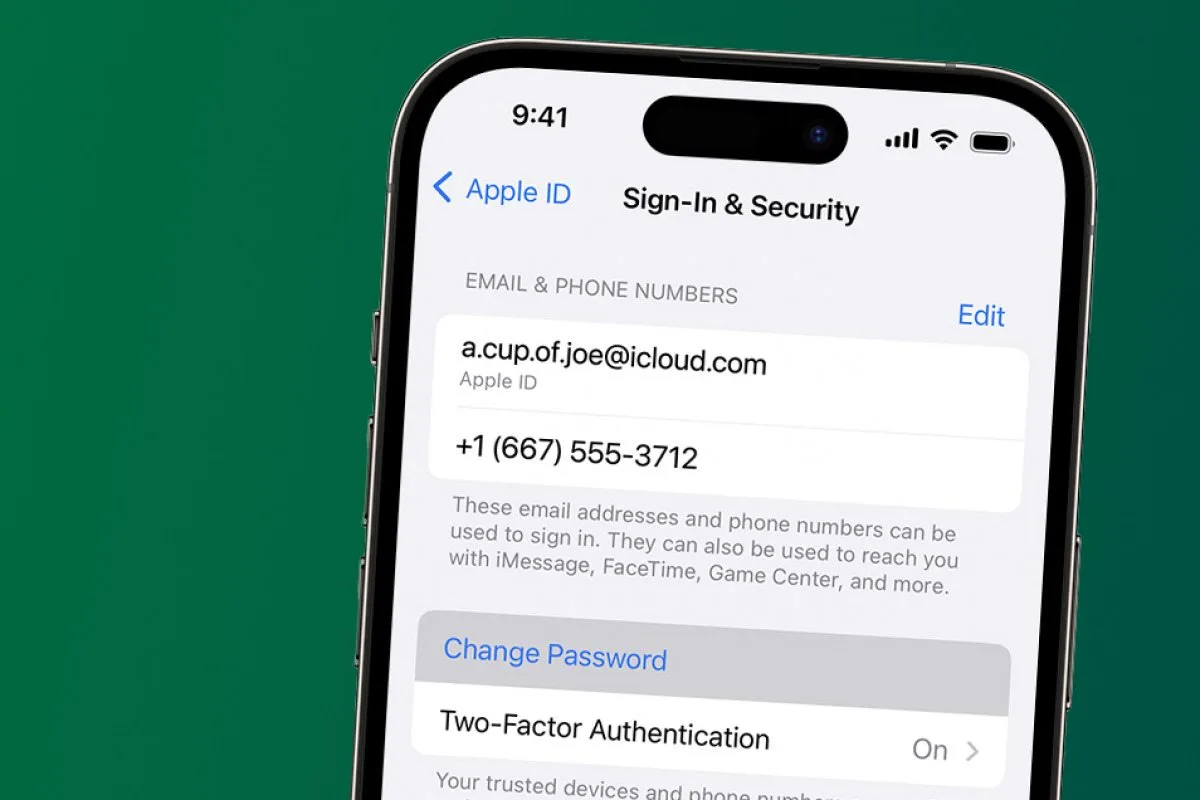
Open each service’s Security or Account Recovery page and locate the field that controls where reset codes go. Do not rely on the login email shown on the profile page, because many services separate “contact email” from “recovery email.” When you change it, confirm the service sends a verification message to the new address and that you can read it.
This works because the recovery email field is the actual routing target for password reset and account recovery messages. In practice, you should see a confirmation step like “We sent a code to your email,” and you should complete it from the mailbox you intend to keep. If the service requires re-authentication, expect a prompt for your current password or MFA code.
For measurable outcomes, aim for 0 accounts with “unknown recovery email” after your audit. If you start with 15 unknowns and resolve 12 in the first pass, you can focus the second pass on the remaining 3 that often hide behind older settings pages.
Test Recovery Without Lockout
Run a controlled test for each critical account by triggering a password reset and checking whether the message arrives in the mapped recovery inbox. Do not complete the reset if the service would invalidate active sessions you care about; instead, verify delivery and expiration behavior. Many providers show a “request received” message even when delivery fails, so you must check the inbox and spam folder.
This works because it validates the end-to-end path: account settings → email delivery → inbox filtering. In practice, you can test 5–10 accounts per day to avoid rate limits, and you can stop once you confirm the pattern. A mild frustration: some services throttle repeated reset requests, so batch your tests and wait 30–60 minutes between retries.
As a side observation, I noticed in Gmail that searching for “subject:(reset)” sometimes misses messages when the subject line differs by locale; using broader keywords like “verification code” catches more. If you use email aliases, confirm the reset lands in the alias mailbox you actually monitor.
Align MFA With Recovery Email
For each account, record the MFA method and confirm it matches your recovery plan. If the account uses authenticator apps, ensure you can still access the app after a device change, and store backup codes offline. If the account uses SMS, recognize that phone number portability and carrier delays can complicate recovery, so map the recovery email as a secondary path.
This works because many recovery flows require both recovery email access and an MFA challenge. In practice, you will see options like “Authenticator app,” “Security key,” “SMS,” or “Backup codes,” and the service may require MFA to change the recovery email. If you cannot complete MFA during an audit, treat that account as “recovery constrained” and prioritize it for fixes.
Use realistic numbers: if you have 25 accounts with MFA, and 5 rely on SMS to an old number, updating those 5 can reduce recovery friction more than updating 20 accounts that already use authenticator apps. I also recommend checking whether the service supports passkeys; passkeys can reduce reliance on email codes, but they still depend on account identity continuity.
Use A Password Manager For Mapping
Store recovery mapping in a place you can access even when you are locked out of one account. A password manager can hold login credentials and notes, but you must also record the recovery email explicitly because the saved username does not always match the recovery routing address. If your password manager supports custom fields, add “Recovery email” and “MFA backup method” as fields.
This works because it creates a single source of truth you can consult during recovery attempts. In practice, you will still verify the recovery email in the service settings, but the password manager reduces the chance you forget which address you chose. In my workflow, I tag entries as “Verified YYYY-MM” after I test delivery, and I keep backup codes in an encrypted note with a separate recovery key.
Be cautious with versioning: some password managers change how they display custom fields after updates, and I saw a UI shift in 2024 that moved “notes” into a different tab. If you rely on a specific field layout, re-check after major updates.
Handle Aliases And Forwarding Carefully
If you use email aliases (for example, plus-addressing or provider aliases), confirm whether the service stores the alias address as the recovery target. Some services treat aliases as distinct addresses and will send reset messages to the exact stored value, which can be fine if the alias forwards correctly. If you use forwarding rules, test that reset messages are not dropped by spam filters or quarantined.
This works because email routing rules can change without you noticing, especially after provider migrations. In practice, you should verify that the recovery inbox receives messages within the expected time window and that the messages are not redirected to a “Promotions” or “Updates” tab where you might miss them.
A measurable approach is to test delivery for 3–5 alias-based accounts and record the arrival time. If messages arrive consistently within 2–5 minutes, you can trust the setup; if they take hours or land in a different folder, adjust the alias or recovery email to a mailbox you actively monitor.
Document Change Dates And Ownership
Track when you last verified each recovery email and who owns the mailbox. If a mailbox is shared (family, work group, or delegated access), record the access method and whether you can receive codes during emergencies. Many account lockouts happen after a mailbox owner changes roles, and the recovery email mapping becomes stale.
This works because recovery email mapping is a living configuration, not a one-time task. In practice, you can set a reminder to re-verify critical accounts every 6–12 months, or after any major email provider change. I prefer a “last verified” date because it tells me whether the mapping is current, and it prevents the quiet drift that happens when services update their settings.
For measurable outcomes, aim to have at least 10 critical accounts (email, banking, identity providers, major social) verified within the last 12 months. If you cannot reach that target, prioritize accounts that control access to other accounts, like your primary email and identity provider.
Case Examples
Work Email Retirement
Scenario: A person created accounts using a work email address and later left the job. They updated the login email for a few services but never changed the recovery email field. During a password reset attempt, the reset link arrived at the retired mailbox, and the user could not access it.
What they did: they searched their current inbox for “password reset” messages to identify which services still sent recovery mail elsewhere, then updated the recovery email field in each service’s Account Recovery page. They tested delivery for 6 critical accounts and confirmed MFA backup codes were still usable after the change.
Outcome: recovery messages arrived in the correct inbox, and they reduced future lockout risk by documenting verification dates in a password manager note.
Alias With Forwarding Rules
Scenario: A user used an alias address for signups and relied on forwarding to their main inbox. After a provider change, reset emails started landing in a spam folder for 2–3 hours before appearing. The user assumed the reset failed and requested multiple new codes, which triggered throttling.
What they did: they changed the recovery email to the main inbox address for the accounts that matter most, then tested 5 password resets and recorded arrival times. They also adjusted spam filtering rules for the reset sender domains and stopped repeated reset requests during the test window.
Outcome: reset delivery became predictable, and they avoided throttling by batching tests and waiting between attempts.
Comparison Table Or Checklist
| Approach | What It Confirms | Typical Time | Main Risk |
|---|---|---|---|
| Settings Audit | Recovery email field matches your target mailbox | 5–15 minutes per account | Delivery still fails due to spam/forwarding |
| Reset Delivery Test | Reset messages arrive in the mapped inbox | 2–5 minutes plus waiting | Rate limits from repeated requests |
| MFA Alignment Check | You can complete recovery challenges | 10–20 minutes per critical account | Backup codes missing or inaccessible |
| Password Manager Notes | You can find the mapping during lockout | 5–10 minutes per batch | Notes drift if you never re-verify |
Step-by-step checklist: (1) Inventory accounts, (2) update recovery email in settings, (3) verify you can receive the verification message, (4) test reset delivery for critical accounts, (5) align MFA and store backup codes, (6) record “last verified” dates in a password manager or secure notes, (7) re-check after any email provider or phone number change.
Common Mistakes
People often update only the profile email and forget the separate recovery email field, which means password resets still go to the wrong mailbox. Another mistake is changing recovery email without completing the verification step, leaving the service in a partial state where old recovery routing remains active.
Some users rely on “Sign in with” identities and assume recovery email mapping happens automatically. In practice, the identity provider account still has its own email and recovery settings, and the service may use that identity’s email for recovery messages.
Another recurring issue is ignoring MFA backup codes. If you switch devices or reinstall an authenticator app, you can lose the ability to satisfy MFA challenges even when the recovery email is correct. Store backup codes offline and test that you can access them.
Finally, people skip delivery tests because the settings page shows the correct email. Delivery tests catch inbox filtering problems, alias forwarding delays, and regional email subject variations that make messages easy to miss. A small annoyance: some services send reset messages with different subject lines, so search using multiple keywords rather than only “reset.”
FAQ
Where Is The Recovery Email Stored?
It lives in the service’s Security or Account Recovery settings, often separate from the profile contact email. Look for wording like “Password reset,” “Account recovery,” or “Recovery email,” then confirm the address shown there.
Does The Login Email Always Receive Reset Codes?
No. Many services send reset codes to a recovery email that can differ from the login identifier. Verify by checking the recovery settings page and, for critical accounts, by triggering a reset and checking delivery.
How Do I Map Accounts Using A Password Manager?
Save the login credentials in the password manager, then add a custom note or field for the recovery email and MFA backup method. After you change recovery email in the service, update the note and record a “last verified” date.
What If I No Longer Access The Old Email?
Use the service’s account recovery process, which may require MFA, identity verification, or support contact. Before you start, gather proof of ownership and any backup codes, then update the recovery email only after you regain access.
Should I Test Password Resets For Every Account?
Test delivery for critical accounts first, then sample the rest. Repeated reset requests can trigger throttling, so batch tests and wait between attempts while checking inbox, spam, and any forwarding destinations.
Author's Insight
Recovery email mapping succeeds when it matches the actual routing target used by each service, not when it matches your memory of how you signed up. The most reliable workflow combines a settings audit with a delivery test for critical accounts, because email filtering and forwarding rules can break recovery even when the field looks correct.
In audits, I see drift most often after email provider changes, phone number changes, and device migrations that affect MFA. Recording “last verified” dates and storing MFA backup codes reduces the chance that a correct recovery email still fails during a real lockout.
For health-adjacent readers, the parallel lesson is similar to medication safety: small configuration details matter during emergencies, and you want a plan that works under time pressure.
Key Takeaways
- Map recovery email per account by checking the service’s Account Recovery settings, not just the login email.
- Validate end-to-end delivery for critical accounts by triggering a reset and confirming arrival in the mapped inbox.
- Align MFA and backup codes with your recovery plan, since recovery email access alone often does not finish the process.
- Document the mapping with “last verified” dates in a password manager or secure notes so the information stays current.
- Expect limits: reset delivery tests can trigger throttling, and some services require identity verification when old email access is gone.