Passkeys Change Account Security
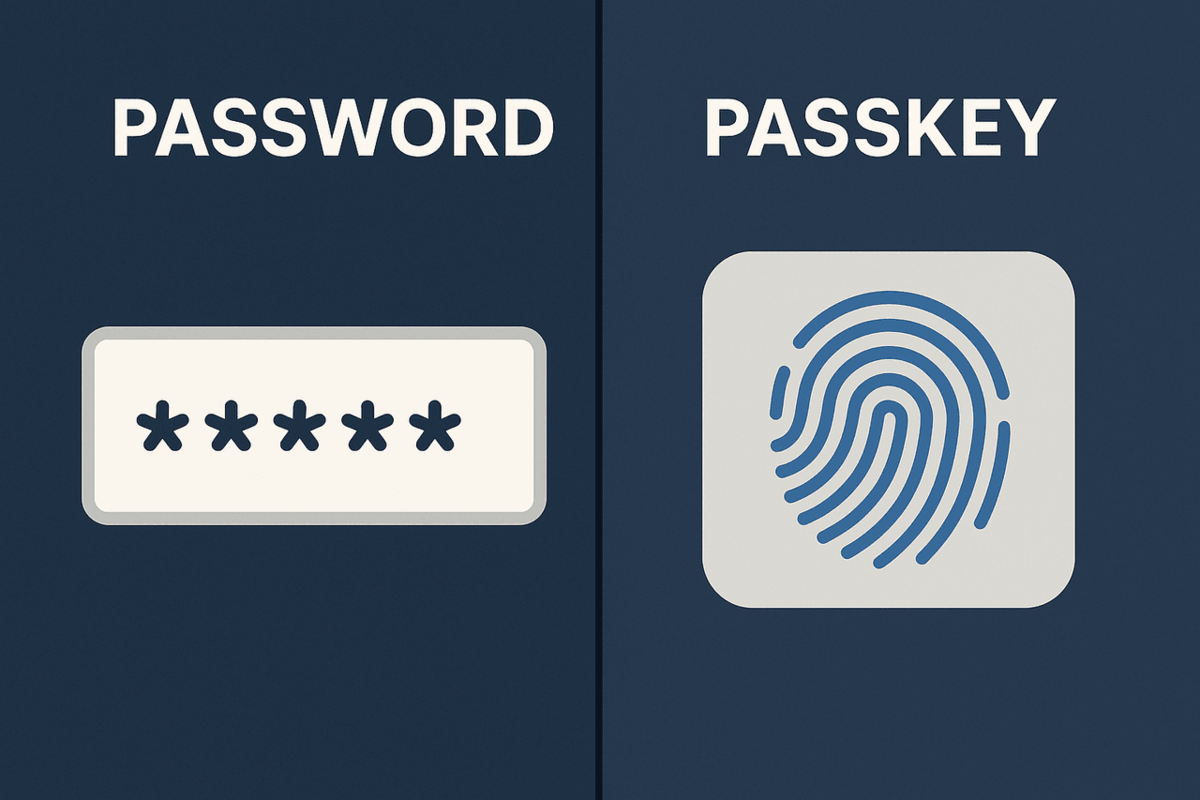
Passkeys replace shared secrets with a device-bound login flow based on public-key cryptography. A password is a human-memorable secret that gets typed and reused across sites, which creates a target for credential stuffing and phishing. A passkey typically lives in your password manager or on a device, and the site verifies a cryptographic signature instead of checking a typed secret.
In practice, a passkey login looks like a biometric prompt or a device confirmation, then a cryptographic exchange with the relying party. The server stores a public key and verifies signatures produced by your authenticator. That design shifts the main risk away from “tricking you into typing a secret” and toward “keeping your authenticator and recovery path usable.” I noticed this difference clearly when testing a passkey flow in a browser with versioned security prompts (Chrome 126 on macOS), where the UI shows a device confirmation step before the cryptographic request.
Passwords still matter because many services keep them for compatibility and because account recovery often falls back to email or phone. Passkeys reduce exposure to password reuse, but they do not remove account recovery risk, session hijacking, or malware on the device that can trigger prompts. The security outcome depends on how the service handles recovery, how your devices sync, and how you protect your email account.
Misunderstandings & Dependencies
People often treat passkeys as “phishing-proof” in a blanket sense. Phishing attempts can still succeed if the attacker compromises your device, tricks you into approving a prompt in a malicious context, or targets the account recovery channel. Passkeys reduce the usefulness of fake login pages because the attacker cannot reuse your passkey like a password, but the attacker can still aim for session tokens or recovery workflows.
Another misunderstanding is assuming passkeys remove the need for strong identity controls. Many accounts still rely on email verification, SMS codes, or backup codes during recovery. If your email provider is protected with weak security, a passkey on the banking site does not stop an attacker from resetting the banking account through email. This dependency is structural: account recovery is usually the weakest link because it bypasses the normal login ceremony.
Passkeys also depend on platform support and correct configuration. The underlying standards include FIDO2/WebAuthn for the authentication ceremony and passkey syncing mechanisms provided by operating systems and password managers. If you enable sync, you trade “many devices can authenticate” for “more devices can access the same key material,” which changes your threat model. On a shared laptop, for example, passkey sync can create a situation where another user profile can trigger prompts, which is a real-world annoyance and a real risk.
Finally, people underestimate how often accounts are accessed from multiple environments. Work accounts may restrict passkey enrollment, and some older browsers or embedded webviews may not support the full flow. When a passkey cannot be used, the service may fall back to passwords, which brings back the original risks. That fallback behavior varies by provider and by client app, and it rarely matches the marketing language.
Practical Steps For Safer Switching
Turn On Passkeys With Recovery
Start by enabling passkeys on accounts that support them and then immediately review recovery settings. Look for options like backup codes, secondary email addresses, and phone numbers, and confirm they are still under your control. If the service offers “device-based recovery” or “account recovery with verification,” choose the path that does not depend on a single fragile channel. A realistic outcome target is reducing password reuse exposure within days, not weeks, because passkey enrollment is usually a one-time setup.
Use a password manager that supports passkeys and keep it protected with a strong master password and a second factor where available. If you rely on OS sync, check whether it is protected by your device lock and whether you can revoke access if a device is lost. I once saw a family member enable passkey sync on a tablet without a screen lock; the passkey prompt still appeared, but the device was unlocked enough that the prompt became a formality.
Harden Your Email And Phone
Protect the account recovery channel first. For email, enable multi-factor authentication and prefer authenticator apps or security keys over SMS when the provider supports it. For phone-based recovery, verify that your carrier account has its own protections against SIM swaps, such as port-out PINs. If your email account can be reset, an attacker can often reset other accounts regardless of passkey adoption.
Measure progress by checking whether you can complete a recovery test without guessing. Many providers let you add a test recovery method and confirm it works. Do this before you need it, because recovery flows often fail when you are stressed and time-limited.
Reduce Prompt And Device Risk
Passkeys still require you to approve a login or biometric check, so device compromise remains a threat. Keep your operating system and browser updated, and avoid installing untrusted extensions that can overlay or intercept prompts. On mobile, lock the screen promptly and disable “unlock with device nearby” features if you share spaces with others.
Also watch for “account linking” features. Some services let you connect third-party apps; if those apps can request authentication, they may trigger passkey prompts. Review connected apps and remove anything you do not recognize. This is not theoretical: OAuth consent screens and token grants are common paths for account takeover.
Plan For Loss And Migration
Assume you will lose a device at some point and plan for it. Enroll at least two authenticators for important accounts, such as a phone and a laptop, so you can authenticate even if one device is unavailable. If your password manager supports exporting or recovery, follow its documented process and store recovery information offline.
Migration matters when you change phones. If you switch devices, verify that passkeys are synced or re-enrolled before you delete the old device. A practical rule is to complete passkey setup on the new device while the old device still works, then only remove the old device after you confirm logins succeed.
Educational Case Examples
Scenario 1: Banking login after a phishing attempt. A user receives a fake bank email and tries to log in from the attacker’s page. With a password, the attacker would capture the typed secret and later use it for credential stuffing. With a passkey, the attacker’s page cannot reuse the user’s passkey as a password, so the login fails unless the attacker can compromise the device or hijack the session. The user still needs to check whether the email account used for recovery was exposed, because recovery settings can bypass the normal login flow.
Scenario 2: Lost phone during travel. A user loses a phone while traveling and cannot access the passkey stored only on that device. If the account has a second authenticator enrolled and recovery methods that do not rely on the lost phone, the user can regain access quickly. If recovery depends on SMS to the lost number and the carrier does not restore service promptly, the user may face delays. The lesson is not “passkeys fail,” but “passkeys shift the failure mode to recovery and device availability.”
Passkeys Vs Passwords Checklist
| Decision Area | Passkeys | Passwords | What To Check |
|---|---|---|---|
| Phishing resistance | Reduces value of fake login pages because the attacker cannot reuse a typed secret | Susceptible to credential theft via phishing and keylogging | Whether the service supports passkeys and whether it still uses email/phone recovery |
| Recovery path | Depends on enrolled authenticators and recovery methods | Often depends on email/phone resets | Backup codes, secondary email, and whether SMS is used |
| Device risk | Prompt approval still matters; malware can trigger actions | Keyloggers and password reuse increase exposure | OS/browser updates, extension hygiene, and screen lock |
| Cross-device use | Sync can spread access to multiple devices | Password managers can sync secrets too | Whether sync is protected by strong device authentication |
Step-by-step checklist (quick audit):
- Pick one high-value account (email, banking, or work admin) and confirm passkey support in the account settings.
- Enroll at least two authenticators (for example, phone and laptop) before removing any password-based fallback.
- Review recovery methods and remove old phone numbers and unused emails.
- Test a login from a different device profile or browser to confirm the passkey flow works.
- Check connected apps and revoke anything you do not recognize.
Mistakes That Weaken Security
One frequent mistake is treating passkeys as a reason to relax email security. If an attacker can reset your email password or take over your mailbox, they can often reset other accounts even when those accounts use passkeys. The passkey reduces one attack path, but it does not close the recovery path.
Another mistake is enrolling only one authenticator and assuming it will always be available. Phone-only passkey setups fail when the phone is lost, wiped, or replaced without sync. A second authenticator and a tested recovery method prevent the “I can’t log in” scenario that feels sudden and unfair.
People also skip device hygiene because the login prompt looks familiar. A malicious browser extension can still interfere with the authentication flow, and malware can still request approvals. Keeping the OS and browser updated and removing risky extensions reduces the chance that passkeys become a convenient target.
Finally, some users store recovery codes in the same place as the device they protect. If a laptop is stolen and the recovery codes are in a cloud-synced note or a folder on the desktop, the attacker may regain access. Recovery information needs a threat model too, and it should be stored where an attacker cannot reach it with the same access they used to steal the device.
FAQ
Do Passkeys Eliminate Phishing Risk?
Passkeys reduce the usefulness of fake login pages because attackers cannot reuse a passkey like a password. Phishing can still succeed through device compromise, session hijacking, or account recovery channels that rely on email or phone.
What Happens If I Lose My Phone?
Access depends on whether you enrolled another authenticator and whether recovery methods still work. If your account relies on SMS to the lost number and carrier recovery is slow, you may face delays.
Can I Use Passkeys Across Browsers?
Often yes, when the platform and sync support it, but support varies by device and app. Some embedded browsers or older clients may fall back to passwords, so test the login flow on the devices you actually use.
Do Passkeys Work With Password Managers?
Many password managers support passkeys, but the exact behavior depends on the product and the device ecosystem. Check the manager’s documentation for passkey sync and recovery handling, then verify your recovery options inside the account settings.
Should I Keep Passwords After Enabling Passkeys?
Keep a strong, unique password until you confirm that passkeys and recovery methods work from multiple devices. If you remove passwords too early, you may get locked out when passkey support fails in a specific app or environment.
Author's Insight
Passkeys change the authentication mechanism from “shared secret entry” to “public-key verification,” which shifts the attacker’s job from stealing a reusable secret to breaking device security or recovery controls. The practical security gain depends on how the service handles account recovery and how many authenticators you enroll. A careful setup treats email and phone recovery as part of the passkey system, not a separate problem. When you test logins from more than one device profile, you learn where the service falls back to passwords and where it does not.
Key Takeaways
- Passkeys reduce phishing value by avoiding reusable typed secrets, but they do not remove recovery and device-compromise risks.
- Enroll at least two authenticators and review backup codes, secondary emails, and phone recovery before relying on passkeys.
- Harden your email account first because it often controls resets for other services.
- Plan for device loss by testing passkey login on the devices you actually use, then adjust recovery settings accordingly.