Account Recovery Codes
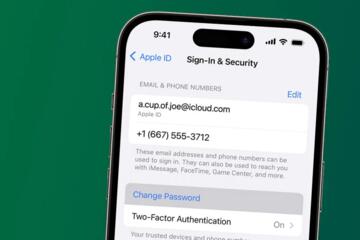
Account recovery codes are backup credentials issued by a service so you can regain access when normal login paths fail. They are often one-time codes, sometimes limited in number, and they usually stop working after you use them or after a set time window. A typical flow looks like this: you sign in on a new device, choose “Use recovery code,” enter one code, and the service grants access long enough for you to reset your password or re-link your phone number.
These codes sit in a security gray zone: they are not passwords you type every day, yet they can act like passwords when you need them. If someone obtains them, they may log in without your phone or email. If you lose them, you may be stuck waiting for slower recovery methods such as identity checks, which can take days depending on the provider.
In practice, people treat recovery codes like receipts and store them in the same place as other account details. That habit breaks down when the storage location gets copied, synced, or exposed during a device loss. I’ve seen recovery codes end up in screenshots saved to a shared photo album, which is the kind of “convenience” that turns into a long-term risk.
Main Storage Mistakes
Many lockouts start with a mismatch between how recovery codes are used and how people store them. A common mistake is saving codes in a cloud note that syncs across devices without strong access controls. If your account is compromised, the attacker can read the note and redeem codes immediately. Another mistake is printing codes and leaving the paper where it can be photographed, scanned, or found during a casual search.
People also misunderstand dependencies. Recovery codes usually work only for the service that issued them, and they often require you to be on the login screen for that service. If you store codes for multiple accounts in one file, a single breach can cascade across services. If you rely on a password manager but forget to lock it down with a strong master password and device security, the “backup” becomes a single point of failure.
There’s also a timing issue. Some services generate new recovery codes after you revoke old ones, and some invalidate codes after you change security settings. If you keep an old copy, you may discover during an emergency that the codes no longer work. That failure mode feels personal, but it’s usually just a lifecycle detail of the provider’s security system.
Finally, people underestimate how often codes get copied. Screenshots, email drafts, and “share” links can create extra copies that outlive your intent. Even if you delete the original, backups and sync histories can persist. The risk isn’t theoretical; it’s the normal behavior of many apps that keep revision history.
Where To Store Them
Use A Password Manager
Store recovery codes in a reputable password manager entry dedicated to each service. This reduces the chance of accidental sharing because the codes stay behind the manager’s lock screen and encryption model. Choose a manager that supports strong device security and a master password you do not reuse elsewhere. If your manager supports “secure notes,” store codes there rather than in general documents that might be exported.
Practical outcome: you can retrieve codes on a new device without searching through email threads or photo libraries. A mild frustration: many people store codes in a “notes” app that syncs openly, then wonder why a device compromise exposed them. For a concrete check, look for a manager version that supports end-to-end encryption for vault data and confirm your sync settings before you trust it; for example, Bitwarden clients have had meaningful security changes across releases, and you should verify your current app version and settings.
Keep An Offline Copy
Maintain an offline copy in a tamper-resistant way. A simple approach is to print codes and store them in a sealed envelope inside a locked drawer or safe. If you live in a household where others can access your belongings, treat the envelope like a key, not like a casual document. Use a pen that won’t smear and avoid storing codes in a place exposed to humidity.
Practical outcome: offline storage reduces exposure to account takeovers and cloud sync leaks. A realistic limitation: if you move, sell, or discard the safe contents without updating your plan, you can end up with paper that is out of date. Some providers invalidate codes after security changes, so you should refresh your offline copy when you generate new codes.
Separate By Service
Store codes per service, not in one combined list. If you keep a single spreadsheet with codes for multiple accounts, a single breach of that file can compromise everything. Use separate entries in a password manager or separate envelopes for groups of accounts, such as “email accounts” and “social accounts,” while keeping each service’s codes together.
Practical outcome: you reduce blast radius. If one service’s recovery codes are exposed, you still have a chance to protect other accounts by rotating passwords and reissuing codes. This is also where a small habit helps: label the entry with the service name and the date you generated the codes. I’ve seen people store codes without dates, then spend an hour during an emergency trying to guess which set is current.
Test Your Recovery Path
Run a low-risk test that does not burn codes. Many services let you verify that recovery codes are accepted only when you enter them, so you can’t “test” without using at least one code. Instead, test the process by checking that you can reach the recovery screen on a spare device and that you know where the codes are stored. If your service offers alternative recovery methods such as backup email or authenticator apps, verify those too.
Practical outcome: you reduce the chance that you find the right code but can’t reach the correct login flow. A small aside from real-world friction: some login pages change layout after updates, and people get stuck because they can’t find “Use recovery code” quickly. Do a dry run once, then write down the exact steps you used so you don’t rely on memory.
Case Examples
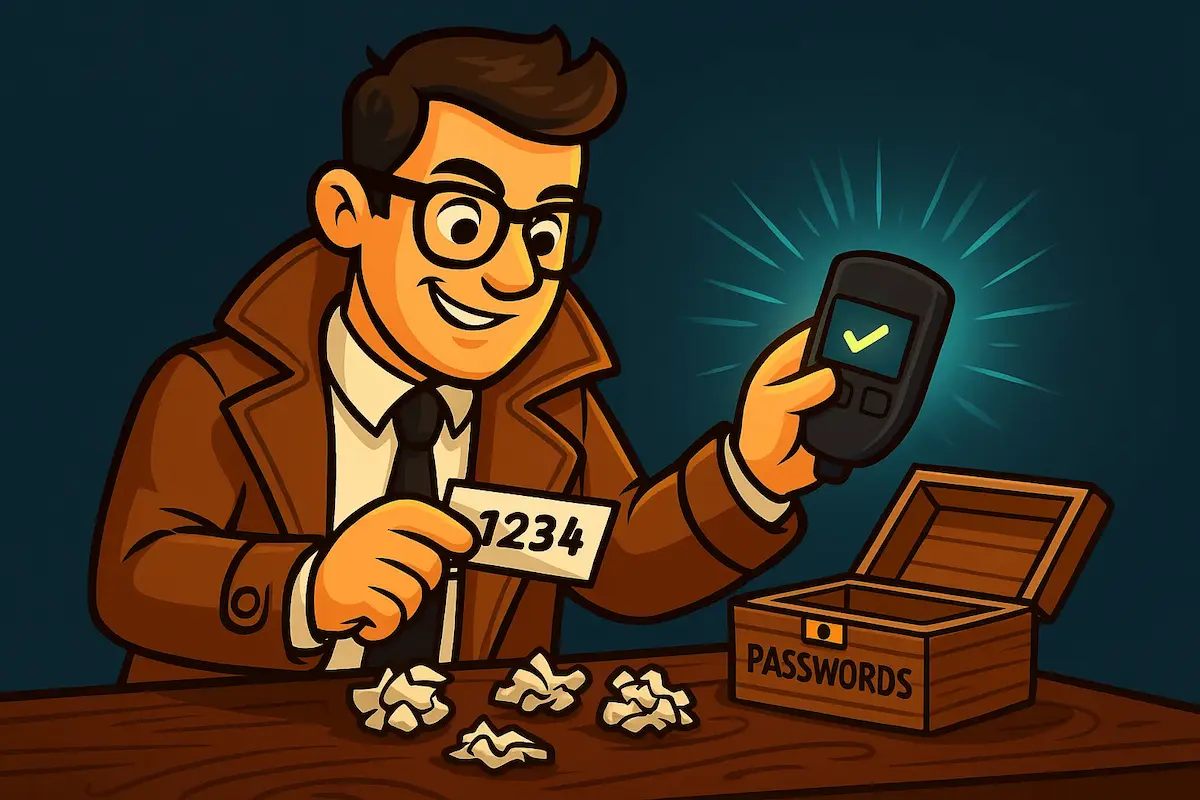
Scenario 1: Cloud note exposure. A person stores recovery codes for email, a bank portal, and a shopping account in a single “Passwords” note inside a general cloud document app. After a phone is lost, they sign into the cloud account from a new device and discover the note is still accessible. The person then realizes the note was shared accidentally with a family member’s account months earlier. The fix is to revoke sharing, move codes into a password manager vault, and generate new recovery codes for the affected services.
Scenario 2: Paper copy becomes outdated. Another person prints recovery codes and stores them in a desk drawer. They later change security settings and generate new codes, but they never update the paper copy. When they lose access to their phone and try to use the old codes, the service rejects them. The resolution is to use the provider’s identity verification path once, then reissue fresh codes and replace the offline copy with the new set.
Storage Checklist And Tradeoffs
| Option | Risk Profile | Recovery Speed | Best Use |
|---|---|---|---|
| Password Manager | Protected by vault lock; exposed if your master credentials or device are compromised | Fast on new devices after login | Primary storage for most accounts |
| Offline Paper | Low exposure to online breaches; vulnerable to physical loss or viewing | Slower during emergencies | Backup when cloud access fails |
| Cloud Note | Higher exposure if the account is compromised or sharing is misconfigured | Fast if you can log into the cloud | Usually not ideal for one-time recovery codes |
Step-by-step checklist you can follow in under 20 minutes:
- Open each service that issues recovery codes and note whether codes are one-time and whether they invalidate after security changes.
- Generate a fresh set for the services you rely on most, then record the generation date in the storage entry.
- Move codes into a password manager vault entry per service, not a shared document.
- Create an offline copy for the top 1–3 services and store it in a locked location.
- On a spare device, navigate to the login page and confirm you can reach the “Use recovery code” option.
- Set a reminder to refresh codes after major account changes, such as replacing a phone number or updating security settings.
Common Mistakes
Storing recovery codes in the same place as passwords increases the impact of a single breach. If an attacker gets access to your password manager export file or a shared spreadsheet, they can redeem codes and reset passwords. Another mistake is saving codes in screenshots inside a photo gallery with broad sharing settings. Photo apps often sync and back up automatically, which creates extra copies.
People also forget to protect the recovery codes themselves. A password manager entry still needs a strong master password and device security such as a screen lock. If you use biometrics, confirm that your device lock screen is enabled and that you don’t leave the device unlocked for long periods. I’ve seen cases where “I’ll just keep it on my phone” turns into “anyone can open it,” which defeats the point of backup credentials.
Finally, avoid sharing recovery codes with family members unless the service’s recovery process and your threat model support it. If you must share access, use account delegation features when available rather than passing codes around. Codes are designed for account recovery, not ongoing shared access, and sharing them increases the chance they leak through messages, backups, or forwarded emails.
FAQ
Are Recovery Codes One-Time?
Many services issue one-time codes, but some provide a set of codes that each work once. Check the exact wording on the provider’s recovery-code screen because code behavior varies by service and can change after security updates.
Can I Store Codes In A Note App?
Storing codes in a general cloud note increases exposure if your account is compromised or if sharing/revision history is misconfigured. A password manager vault or a locked offline copy reduces the chance of accidental exposure.
What If I Lose My Codes?
Most providers offer alternative recovery paths such as identity verification, backup email, or re-enrollment of a second factor. Recovery time depends on the provider’s checks, and old codes often become invalid after security changes.
Should I Print Recovery Codes?
Printing works as an offline backup when stored in a locked, dry place. You still need to refresh the paper when you generate new codes, since many services invalidate older sets.
How Often Should I Refresh Codes?
Refresh codes after major security events such as changing your phone number, updating security settings, or suspecting compromise. If a provider invalidates codes after certain actions, follow that rule rather than using a fixed calendar schedule.
Author's Insight
Recovery codes behave like emergency credentials, so the storage decision should match the threat model: account takeover, device loss, and accidental sharing. Password managers reduce accidental exposure compared with general notes, while offline copies reduce online breach risk but add physical-loss risk. The most reliable plan pairs two storage methods and includes a small “access test” that confirms you can reach the recovery screen. I can’t verify how any specific provider invalidates codes without checking that provider’s documentation, so readers should treat code lifetimes as service-specific and confirm the rules on the recovery-code page.
Key Takeaways
- Store recovery codes per service, not in one combined file, to limit blast radius.
- Use a password manager vault for primary storage and keep a locked offline copy for backup.
- Record the generation date and refresh codes after major security changes.
- Practice reaching the recovery flow on a spare device so you don’t waste time during an emergency.