Emergency Account-Recovery Plan
An emergency account-recovery plan is a written, tested set of steps for regaining access to key accounts when normal sign-in breaks. The plan targets the most common failure modes: a lost phone, a locked email inbox, a forgotten password, or a changed SIM card. Banking and health portals share the same dependency chain—identity verification usually starts with email or phone, then moves to account-specific checks.
For example, if your bank requires a one-time passcode (OTP) sent to your phone number, a dead phone and an unreachable carrier account can stop recovery even when you remember your password. If your health portal uses “Sign in with email,” losing email access can block everything until you regain control of that mailbox. A plan that only lists passwords fails when the recovery path depends on devices you no longer have.
Start by listing the accounts you would need during a disruption: your primary bank login, your email provider, your health insurance member portal, your pharmacy account (if separate), and any identity provider used for sign-in. Then map the recovery method each account uses—SMS OTP, authenticator app, email link, security questions, or in-person verification. Write down the exact method names as shown in the account’s recovery screens, because wording matters when you contact support.
Common Recovery Failures
People often assume that remembering a password automatically restores access. Many services treat password knowledge as only one step; they still require a second factor or a recovery channel you may not control. If your email account is locked, a “reset password” link can’t reach you, even when you still have the password for the email provider’s recovery questions.
Another frequent mistake involves mixing up “account recovery” with “device recovery.” A phone reset can wipe an authenticator app, and some authenticator setups do not include a recoverable backup unless you exported the secret or used a cloud backup. If you used an authenticator app version that supports encrypted cloud sync, the sync settings matter; if you turned them off, the codes may vanish after a factory reset. I’ve seen plans stall because the person wrote “authenticator app” without noting whether it was backed up or whether the app showed a recovery export option.
SIM-related issues also break recovery. If you rely on SMS OTP, a carrier transfer, a suspended line, or a port-out scam can prevent codes from arriving. Some banks add additional checks when they detect a new device or location, which can extend the process even after you regain phone service. Support teams often ask for recent transaction details or identity documents, and those requests take time when you have no access to the original email or phone.
Finally, recovery plans fail when they stay theoretical. If you never test the path, you discover missing details during an emergency. A plan should include a short “dry run” schedule so you learn which steps actually work before you need them. A dry run on a calm day—like checking that your backup email receives a test message—beats discovering the problem at 2 a.m., when you’re also dealing with a broken device.
Build Your Recovery Toolkit
Document Dependencies And Codes
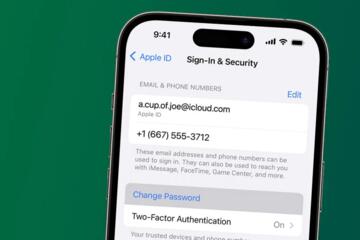
Write down the recovery dependencies for each account: the email address, phone number, authenticator app name, and any backup codes. For SMS OTP, record the carrier and the phone number exactly as shown in the account profile. For authenticator apps, record the app name and whether you exported the setup key or saved backup codes during enrollment. If your authenticator app shows a version number in settings (for example, “v6.0” in the About screen), note it in your document; it helps you match the UI when you troubleshoot later.
Store recovery codes in a place you can reach without the compromised device. Many services offer “backup codes” during 2FA setup; treat them like high-sensitivity documents. Use a locked physical folder plus a separate encrypted digital copy. If you choose a password manager for the digital copy, store the recovery document in a vault entry with restricted sharing, and test that you can open it from a second device.
For banking and health portals, avoid writing codes in plain text on a shared note app. If your phone is lost, a cloud-synced note can be exposed depending on your account security settings. A locked folder with a printed copy reduces that risk, and you can update it when codes expire.
Set Up Backup Access Paths
Create at least two independent recovery paths for each critical service. A common pattern is: primary email + secondary email, and primary phone + backup phone. Some providers let you add multiple phone numbers; others let you add an alternate email for account recovery. If your email provider supports security checks through a second device, enroll that second device before you need it.
For authenticator-based accounts, add a second factor that you can still access. Many services support either backup codes or a second authenticator enrollment. If you use a password manager, confirm whether it can store and autofill recovery steps, but remember that recovery still depends on identity verification. A password manager reduces typing errors; it does not replace the service’s verification requirements.
When you add backup access, record the date. A small aside from troubleshooting: I’ve seen people add a second email but forget to confirm it, so the account still rejects recovery attempts. Your plan should include a “confirmed” status next to each recovery channel.
Test The Plan With A Dry Run
Run a controlled test of your recovery path at least twice per year. Pick one non-critical account first, then move to critical accounts. For example, test whether you can receive an OTP on your backup phone number, and test whether your secondary email receives password reset messages. If your email provider supports a “recent activity” page, check that you can view it from a second device.
During testing, do not trigger full account lockouts. Instead, use the provider’s “send test code” or “verify recovery contact” options when available. If the service lacks a test function, you can still validate by checking that the recovery contact is listed and verified in account settings. I recommend doing this after major travel or after changing carriers, since those events often change how SMS delivery behaves.
Keep a short log: date, what you tested, and what worked. If something fails, update the plan immediately. A plan that never changes becomes a historical record of what used to work.
Create A Recovery Script For Support
Write a one-page “recovery script” you can read to support agents. Include the account type, the recovery method you lost (for example, “no access to primary email” or “phone number changed”), the last successful login date, and the device model you used. Add the exact error message text from the sign-in screen, since support teams often route cases based on error codes.
Prepare a checklist of documents you might need: government ID, proof of address, or recent transaction details. Do not guess what a provider asks for; check the provider’s help center pages for “account recovery” and “identity verification.” If you can’t find the list, write “ask for required documents” and keep the script ready.
When you contact support, you may need to confirm ownership without access to the original email. Your script should include alternate contact details that you still control, so the agent can send next steps to the right place.
Case Examples For Real Life
Lost Phone With SMS OTP
Scenario: A person uses SMS OTP for their bank and keeps the only phone number in the bank profile. Their phone is lost, and the carrier line takes two days to restore service. The person can’t receive OTP codes, so they cannot complete password reset. Their emergency plan includes a backup phone number added to the bank profile and a printed set of recovery codes from the bank’s 2FA setup. During the incident, they switch to the backup number, complete verification, and regain access without waiting for the carrier restoration.
Lesson: SMS OTP recovery depends on carrier control. A backup phone number reduces downtime, but only if it is already verified in the account settings.
Email Inbox Locked Out
Scenario: A person’s email account is locked after suspicious login attempts. Their health insurance portal uses “email as username” and sends password reset links to that mailbox. The person’s emergency plan includes a secondary email address verified with the insurance portal and a password manager vault entry containing the portal’s recovery steps. They contact their email provider using the secondary recovery method and regain access to the mailbox within a day. After email access returns, they complete the health portal sign-in reset using the documented steps.
Lesson: If your health portal depends on email, account recovery can stall until email recovery finishes. Secondary recovery channels shorten the chain.
Recovery Checklist And Tradeoffs
| Recovery Method | Strengths | Common Failure Mode | Plan Action |
|---|---|---|---|
| SMS OTP | Works with basic phones and quick delivery | Carrier outage, SIM swap, number change | Add a backup number and test OTP delivery |
| Email Reset Links | Often supports multiple devices | Inbox locked, spam filtering blocks messages | Add secondary email and verify it |
| Authenticator App | Resistant to SMS interception | Device reset wipes codes without backup | Export setup key or store backup codes |
| Backup Codes | Independent of phone and email | Codes expire or are lost with the device | Print and encrypt copies; update on expiry |
Step-by-step checklist you can follow on a calm day:
- List accounts in a single document: bank, email, health portal, pharmacy, and any identity sign-in provider.
- For each account, record the recovery method names exactly as shown in settings.
- Verify at least one backup contact for email and one backup contact for phone-based recovery.
- Export authenticator setup keys or store backup codes in two separate locations.
- Run one dry run test for OTP delivery and one for password reset email delivery.
- Write a support script with last login date, error text, and alternate contact details.
- Schedule updates every 6 months or after any carrier change, device replacement, or password manager migration.
Common Mistakes To Avoid
Storing recovery codes only in the same phone or laptop that you depend on for sign-in creates a single point of failure. If the device is lost, the plan loses its purpose. A second location matters even when you trust your cloud backups, because account access still depends on the same identity chain.
Writing down passwords without recording recovery channels leads to dead ends. A password reset often requires access to email or phone, and those channels can fail independently. Your document should include the recovery path, not just the secret.
Skipping verification steps also causes delays. Many services mark secondary emails or numbers as “unverified” until you click a link or enter a code. If you add a backup contact but never complete verification, the account still routes recovery to the original channel.
Another mistake involves assuming that support can bypass identity checks. Providers typically follow documented verification procedures, and agents cannot ignore them. Your plan should reduce the number of back-and-forth messages by including the exact error text and the last successful login date.
Finally, people update the plan once and never revisit it. After a carrier change, a new phone model, or an authenticator app reinstall, the recovery chain can break. A short review on a fixed schedule—like every January and July—keeps the plan aligned with how your accounts behave.
FAQ
What should I write down first?
Start with the recovery dependencies for your email account and your bank login: the exact recovery method names, the phone number(s), and whether backup codes or an authenticator app are used.
Where should I store recovery codes?
Use two separate locations: a locked physical copy and an encrypted digital copy. Avoid storing codes only in the same device you might lose.
How often should I test recovery access?
Test at least twice per year. Validate OTP delivery to a backup number and password reset delivery to a secondary email when available.
What if I lost my authenticator app?
Use backup codes or a second authenticator enrollment if you set one up. If neither exists, recovery usually requires identity verification through the service’s support process.
Can support recover my account without my email or phone?
Support can sometimes help through identity verification, but the exact requirements vary by provider. Your recovery script should list alternate contact details and the error message text.
Author's Insight
A recovery plan works when it maps the dependency chain: identity verification starts with email or phone, then moves to account-specific checks. The most reliable plans record recovery channels in advance, store backup codes outside the primary device, and include a support script with error text and last successful login dates. I do not have personal clinical experience; this guidance synthesizes common account recovery mechanisms used by banks and health portals and focuses on practical testing and documentation. If a provider’s help center lists different steps, follow the provider’s documented process even when it conflicts with generic advice.
Key Takeaways
- Write down recovery dependencies for each account, not just passwords.
- Add backup email and backup phone numbers where the service supports them, and verify them.
- Store authenticator backup codes or exported setup keys outside the device you might lose.
- Test OTP and reset delivery twice per year, then update your notes after any major device or carrier change.
- Keep a one-page support script with error text, last login date, and alternate contact details.