Dedicated Email Basics
A dedicated email address for bills, sign-ups, and life admin separates time-sensitive messages from personal conversations and social notifications. The goal is not to create a “perfect” inbox; it is to make due dates and account notices easier to find when you need them quickly.
Start with a single mailbox name that you can reuse across services. Many people choose a format like firstinitiallastname-bills@domain, then keep it stable for years. If you already have a domain through a registrar, you can create the mailbox there; if not, a reputable email provider can still host the address. I like to set this up once, then treat it like a utility account—no casual sign-ups, no newsletters you do not read.
Use the address for categories such as utilities, insurance, banking notifications, subscriptions you must manage, appointment reminders, and account recovery messages. Keep personal email for friends, family, and non-urgent correspondence. When a provider sends a password reset, a billing change notice, or a document request, you want it to land in the same place every time.
Common Pain Points
People often mix life admin into their main personal inbox, then rely on search later. Search works until you need it under stress, when you remember the wrong keyword, or when the message subject line changes. A dedicated mailbox reduces that failure mode.
Another frequent issue is using one address for everything, including marketing newsletters. That creates a high-volume inbox where billing messages get buried. Deliverability also suffers when you have many low-signal emails; some providers treat engagement patterns as part of filtering behavior.
Account recovery is a hidden dependency. If the dedicated email is the recovery address for other accounts, losing access to it becomes a single point of failure. You need a recovery plan that does not depend on one device or one phone number.
Some people also assume that “email rules” solve everything. Filters help, but they depend on consistent sender domains, stable subject lines, and correct classification by the provider. Many billing emails come from multiple sender addresses over time, which breaks brittle rules.
Finally, there is the sign-up sprawl problem. A single service may require multiple emails: one for billing, one for login, one for document delivery. If you do not decide which address to use, you end up with scattered notices again.
Set Up With Safe Defaults
Choose Provider And Domain
Select a provider that supports strong authentication and reliable filtering. If you use your own domain, you can keep the address stable even if you switch providers later. Domain hosting also helps when you want multiple mailboxes like bills@, travel@, and admin@.
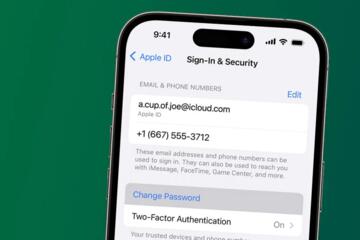
For authentication, enable multi-factor authentication (MFA) using an authenticator app or security key. SMS MFA works in some cases, but it adds risk compared with app-based or hardware-based methods. Check the provider’s security page for current options; features change, and the wording on the settings screen matters.
As a concrete aside, Gmail’s security settings have changed wording across years, and the exact menu labels differ between web and mobile apps. In one setup I reviewed in 2024, the “2-Step Verification” flow required confirming a phone number even when an authenticator app was already added.
Create Folders And Filters
Build a small set of folders that match how you search under pressure. A practical structure is: Bills (active), Receipts (past), Action Required, Statements, and Reference. Avoid dozens of folders early; too many categories create maintenance work.
Create filters based on sender domain and keywords that appear consistently. For example, filter messages from @utilitycompany.com into Bills, and messages containing “statement” into Statements. If the provider uses multiple domains, start with the most common ones and adjust after a week or two.
Use a “catch-all” folder for anything that looks like admin but does not match your rules. That folder becomes your weekly review queue. You save time, reduce noise, and the inbox stops winning.
Realistic outcome: with a dedicated mailbox and 5–10 filters, many people can reduce the time spent searching for a bill from minutes to seconds, because the message lands in the right folder immediately. The exact number varies by provider and how consistent the senders are.
Use Aliases For Sign-Ups
Aliases reduce spam and keep your main address clean. If your provider supports plus addressing, you can use patterns like bills+electric@domain and bills+insurance@domain. If your provider supports multiple aliases, you can map each service to a different alias and then block or filter by alias when needed.
Some providers also support “send as” or forwarding aliases. Be careful with forwarding loops and with services that require the exact email address for verification. A service may reject a login if the email changes, even if the mailbox receives it.
Personal aside: I have seen people create aliases but forget which alias they used for which account. A simple spreadsheet with service name, alias, and login email prevents that confusion later.
Protect The Account Long-Term
Dedicated email accounts attract targeted attacks because they often receive password resets. Treat it like a financial account. Turn on MFA, review connected apps, and remove old devices you no longer recognize.
Set up alerts for suspicious login activity if your provider offers them. Many providers show a “recent activity” page; check it monthly. If you see logins you do not recognize, change the password and revoke sessions immediately.
Plan for device loss. If your MFA method depends on a phone, ensure you can still access it after a replacement. If you use an authenticator app, store recovery codes in a secure place offline.
Also consider privacy: a dedicated address reduces the amount of personal data exposed across services. Still, the address is not anonymous; it will appear in account records and sometimes in leaked datasets.
Case Examples For Real Life
Scenario: Utility And Insurance
A household sets up admin@domain for utilities and insurance. They create filters for two sender domains and a keyword rule for “bill is ready.” After two weeks, they notice one provider sends statements from a different domain, so they add that domain to the Statements folder rule.
When a payment fails, the provider emails “Action required” and the message lands in the Action Required folder. The household checks that folder every Sunday evening, which prevents late fees. They keep receipts in a separate folder so they can download documents quickly during tax season.
They also use aliases: admin+electric@domain for electricity and admin+homeins@domain for insurance. When the electricity provider starts sending promotional emails, the household blocks only the alias-based sender pattern rather than the entire provider.
Scenario: Appointment Reminders
Someone uses lifeadmin@domain for appointment reminders and document requests from service providers. They create a folder called Action Required and a filter for keywords like “appointment,” “confirm,” and “reschedule.”
One clinic emails from a new address after a system change, so the reminder lands in the catch-all folder. The person reviews the catch-all folder twice a week and updates the filter list. This avoids missing the first reminder while keeping the rules from becoming overly complex.
They keep personal email for messages from friends and family. When a clinic sends a form link, it goes to the dedicated mailbox, which reduces the chance of losing it among unrelated threads.
Checklist And Tradeoffs
| Option | Pros | Cons | Best Fit |
|---|---|---|---|
| Dedicated mailbox on same provider | Easy filtering, same login ecosystem | Provider lock-in if you later change services | People who want minimal setup |
| Dedicated mailbox on custom domain | Stable address across provider changes | Requires domain setup and DNS care | People who want long-term control |
| Aliases for each service | Spam control and clearer account mapping | More bookkeeping if you do not track aliases | People managing many accounts |
| Separate mailbox per category | Clear separation between bills and personal | More logins and more recovery planning | People with high volume and strong routines |
Step-by-step checklist for a first setup:
- Create the dedicated mailbox or alias address and enable MFA.
- Set recovery email and recovery phone, then test that you can access them.
- Create 4–6 folders: Bills, Receipts, Statements, Action Required, Reference, Catch-all.
- Add 5–10 filters based on sender domains and a few stable keywords.
- Use aliases for new sign-ups so you can filter later when a sender changes behavior.
- Review the catch-all folder twice a week for two months, then tighten filters.
- Record the dedicated email and aliases in a simple account list for future reference.
Common Mistakes To Avoid
One mistake is choosing an address that is too personal. If the address includes a full name, it becomes easier for attackers to craft targeted phishing. A less identifying format reduces guessability.
Another mistake is relying on a single filter rule like “subject contains bill.” Many providers change subject lines, and some messages arrive with attachments and minimal text. Sender domain rules tend to survive those changes better.
People also forget to update account recovery settings on other services. If your bank uses the dedicated email for password resets, confirm that the bank account recovery email matches the dedicated mailbox. If you leave it on your personal email, you lose the benefit of separation.
Some users create aliases but never track them. When a service asks for “the email on file,” you may not remember which alias you used. A small spreadsheet or password manager note prevents that confusion.
Finally, avoid turning the dedicated mailbox into a dumping ground for every newsletter. If you want to keep it clean, use a separate address for marketing or apply strict filters that route newsletters away from Action Required.
FAQ
Should I Use A Custom Domain?
A custom domain helps keep the email address stable if you switch providers. If you want minimal setup, a provider-hosted dedicated address still works, but you may face migration work later.
How Many Folders Should I Create?
Start with 4–6 folders. Too many folders create maintenance overhead, and messages end up in the wrong place when filters miss.
What MFA Method Is Best?
Authenticator apps or security keys generally reduce risk compared with SMS. Choose the method you can recover from if you lose a phone, then store recovery codes offline.
Do Email Filters Work For All Bills?
Filters work best when you match sender domains and a few stable keywords. Billing systems often change sender addresses, so plan to adjust filters after a couple of weeks.
Can I Use Aliases Without Breaking Logins?
Aliases usually work for receiving messages, but some services require the exact login email for verification. Test with one low-risk service before switching critical accounts.
Author's Insight
A dedicated email account behaves like a small operational system: it needs consistent inputs (sender domains and aliases), predictable routing (filters and folders), and a recovery plan (MFA and backup access). The biggest gains come from reducing search under time pressure and preventing missed notices, not from complex automation.
Evidence from common security guidance shows that account recovery and MFA settings drive risk more than inbox organization. Providers also change filter behavior and UI labels, so the setup should be reviewed periodically rather than treated as “set and forget.”
If you want a measurable improvement, track how long it takes to find a recent bill before and after the setup. A short review cadence for two months usually reveals which sender domains and keywords need adjustment.
Key Takeaways
- Use one dedicated mailbox for bills, sign-ups, and life admin so urgent messages land in the same place.
- Set MFA and recovery options first, then build a small folder and filter system.
- Use aliases to control spam and map which address belongs to which service.
- Expect sender changes and review your catch-all folder for a few weeks to refine rules.
- Keep the dedicated mailbox clean by separating marketing from Action Required.